Screen tour
Open the program, and trends, the calendar and your market position are all in one window
RoomPrice Monitor is a Windows desktop program installed on a computer at your hotel that checks prices and produces reports on a schedule. 2 automatic runs a day; each run that gets valid prices produces an Excel report. Below, using the real program interface and synthetic data, we show what you can see and do on six screens.
These are static screenshots with synthetic demo data; the buttons in the images do nothing and are not connected to the program. Hotel names, prices and system information are all fictional demos, not real operating data.
Screenshots show the program's Traditional Chinese interface.
Stay-date trend: see the trend, then test where a hypothetical price would land
Choose a stay date and a 7/30/90-day window to compare your price with the competitor median. Enter a hypothetical price to see its rank and market position; once price guardrails are set, both the entered price and the guarded price are listed.
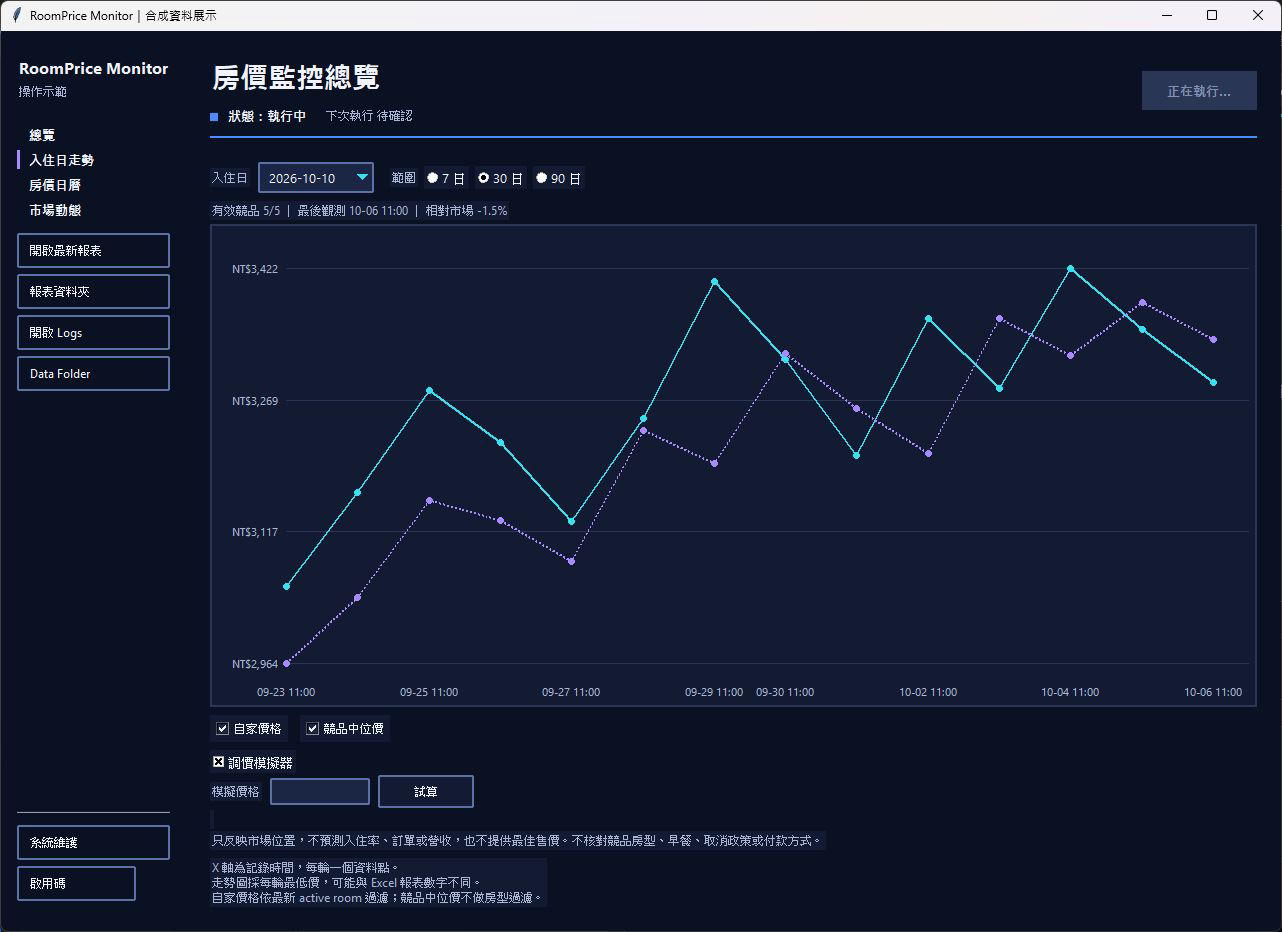 View full screenshot: Stay-date trend
Real program screenshot · synthetic demo data; phones show part of the screen first. Open full-size image: Stay-date trend
This screen helps you answer
- How are competitor prices changing for this stay date?
- Where would a hypothetical price sit in the market?
- How does the calculation change once my guardrails are applied?
Range and linesSwitch between 7/30/90 days. The solid cyan line is your price and the dashed purple line is the competitor median; each line can be hidden on its own. Tooltips show the recorded time, price and valid competitor count, and missing data is never shown as zero.
Price simulatorWhen a guardrail applies, market position is calculated with the guarded price, while the input field keeps the price you entered. Without guardrails, the entered price is used; if rules conflict or can't be read, the calculation stops and explains why.
Calculations don't change your actual data or your Booking rates, don't forecast occupancy, bookings, revenue or the best price, and don't check competitors' room types or rate terms.
Price calendar: market position and data times, month by month
Each stay date shows your price, the competitor median, the price gap and market position. The color bar and text together show below, near or above market; click a date to go straight to that day's trend.
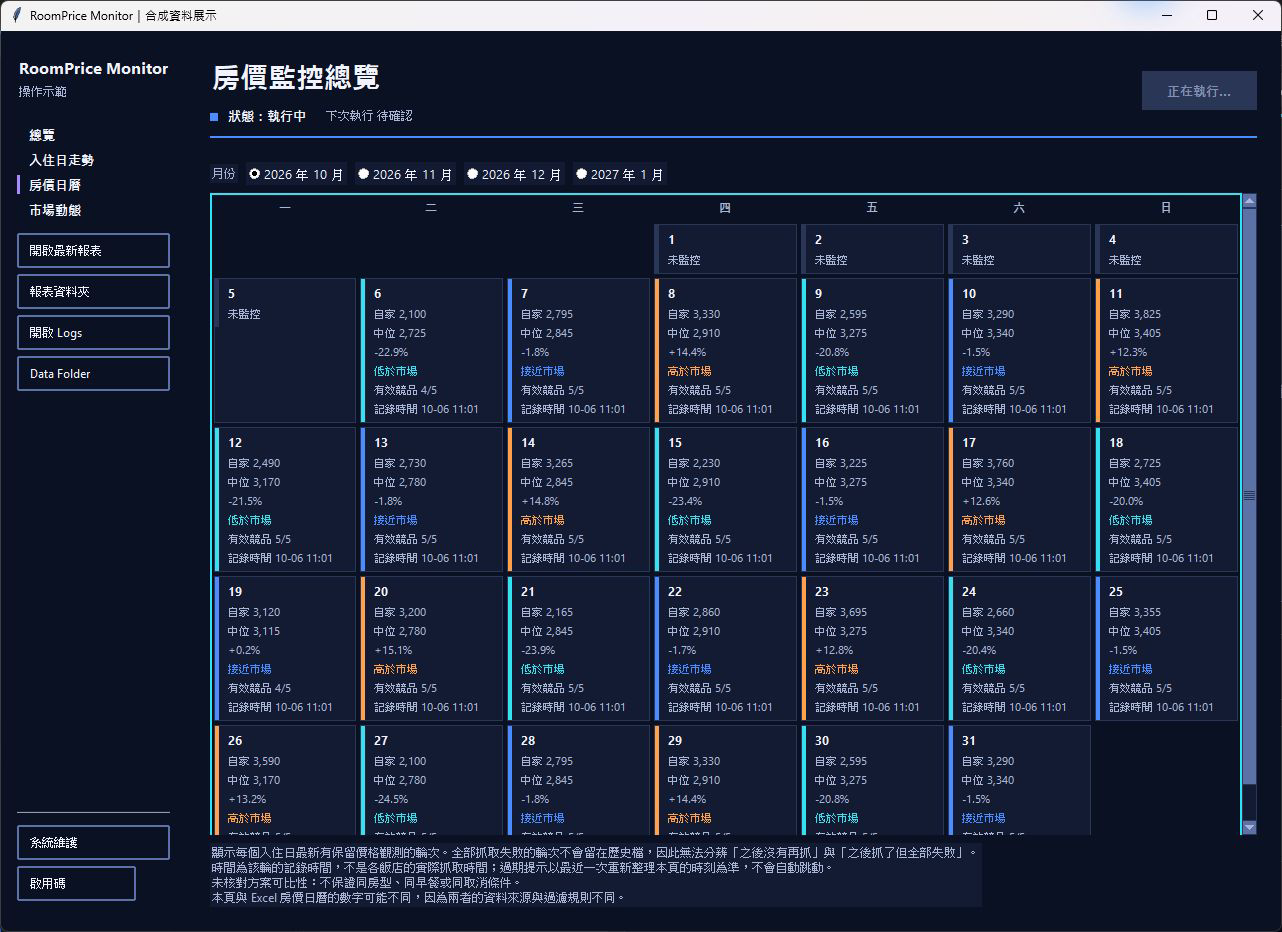 View full screenshot: Price calendar
Real program screenshot · synthetic demo data; phones show part of the screen first. Open full-size image: Price calendar
This screen helps you answer
- Which days this month is my price on the low side?
- Which days lack data or need rechecking?
Market positionCyan = below market, blue = near market, orange = above market. Each cell also says it in text, so you don't have to rely on color alone.
Valid competitors and recorded timeWhen valid prices are missing or there are too few valid competitors, a missing-data status is shown; a blank must not be read as sold out. When the recorded time is more than 24 hours old, an orange border and a time warning appear.
Switch months within the monitored date range, select a date with the mouse or keyboard, and press it to open that day's trend. The recorded time is the run's recorded time, not each hotel's actual fetch time; the screenshots were taken separately, so the minutes may differ slightly.
Market dynamics: find the dates that moved, then check data capture
Market dynamics can switch between three views: “Stay date,” “Competitors” and “Core comparison.” The stay-date and competitor views show this run's capture rate, competitors with incomplete data and dates with insufficient data, to help you decide what to review first.
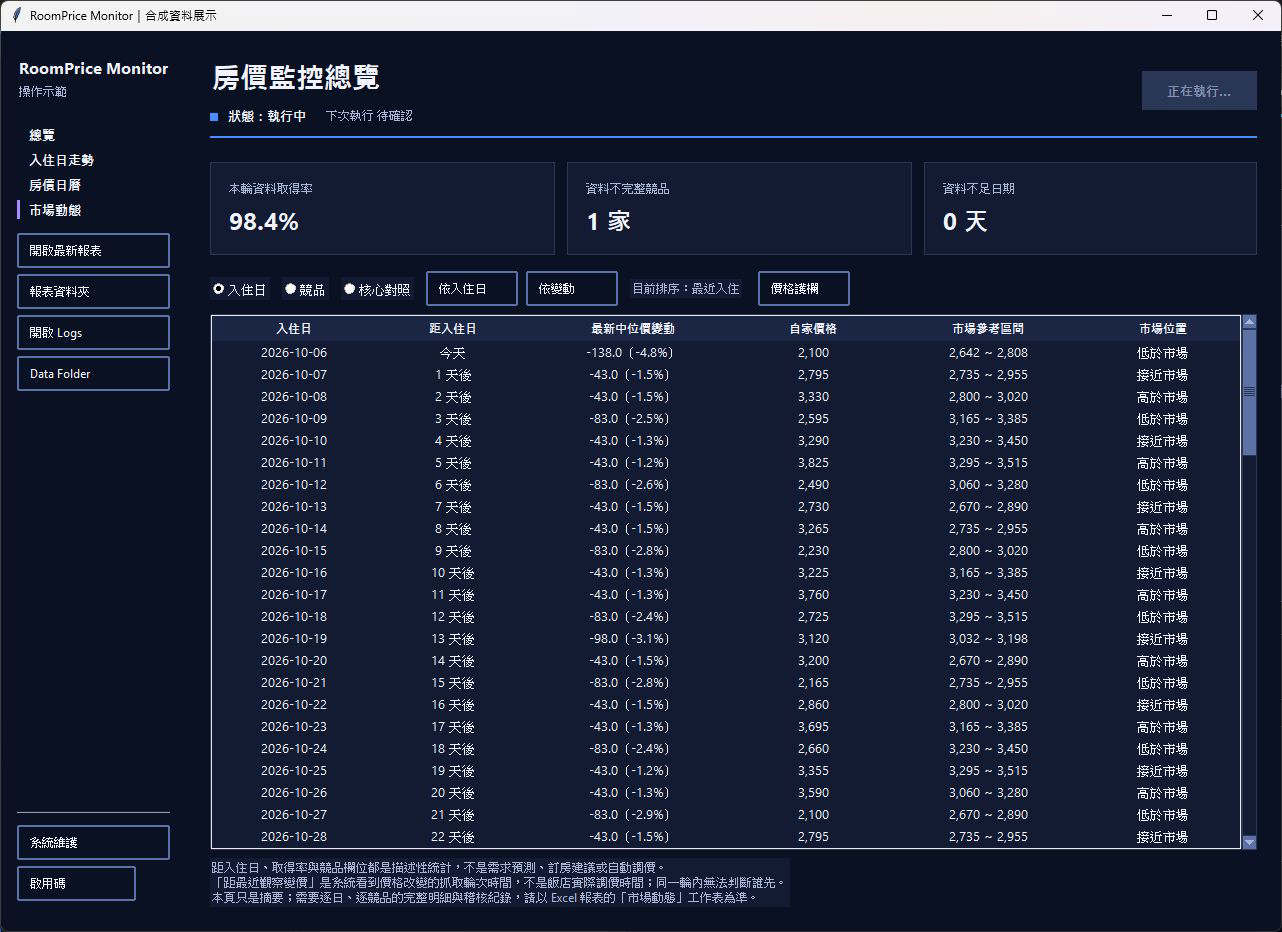 View full screenshot: Market dynamics
Real program screenshot · synthetic demo data; phones show part of the screen first. Open full-size image: Market dynamics
This screen helps you answer
- Which stay dates are warming or cooling?
- Which competitor's data is less complete?
Market range and positionCompare days ahead, the latest median change, your price, the market range and market position; sort by stay date or by warming/cooling.
Data captureThe three cards at the top show this run's capture rate, competitors with incomplete data and dates with insufficient data. Switch to the “Competitors” view to see successful entries from the last run, price change frequency and lowest/highest price share.
Double-click a stay date, or select it with the keyboard and press Enter, to open the trend for that stay date. Price changes are observations, not demand forecasts.
Core comparison: the whole market and your chosen core competitors, side by side
Tick core competitors from your monitored competitor list and compare all competitors with core competitors from the same observed run and in the same currency. After you select a stay date, two comparison cards show the median price, Q1–Q3 range, valid hotel count and your market position.
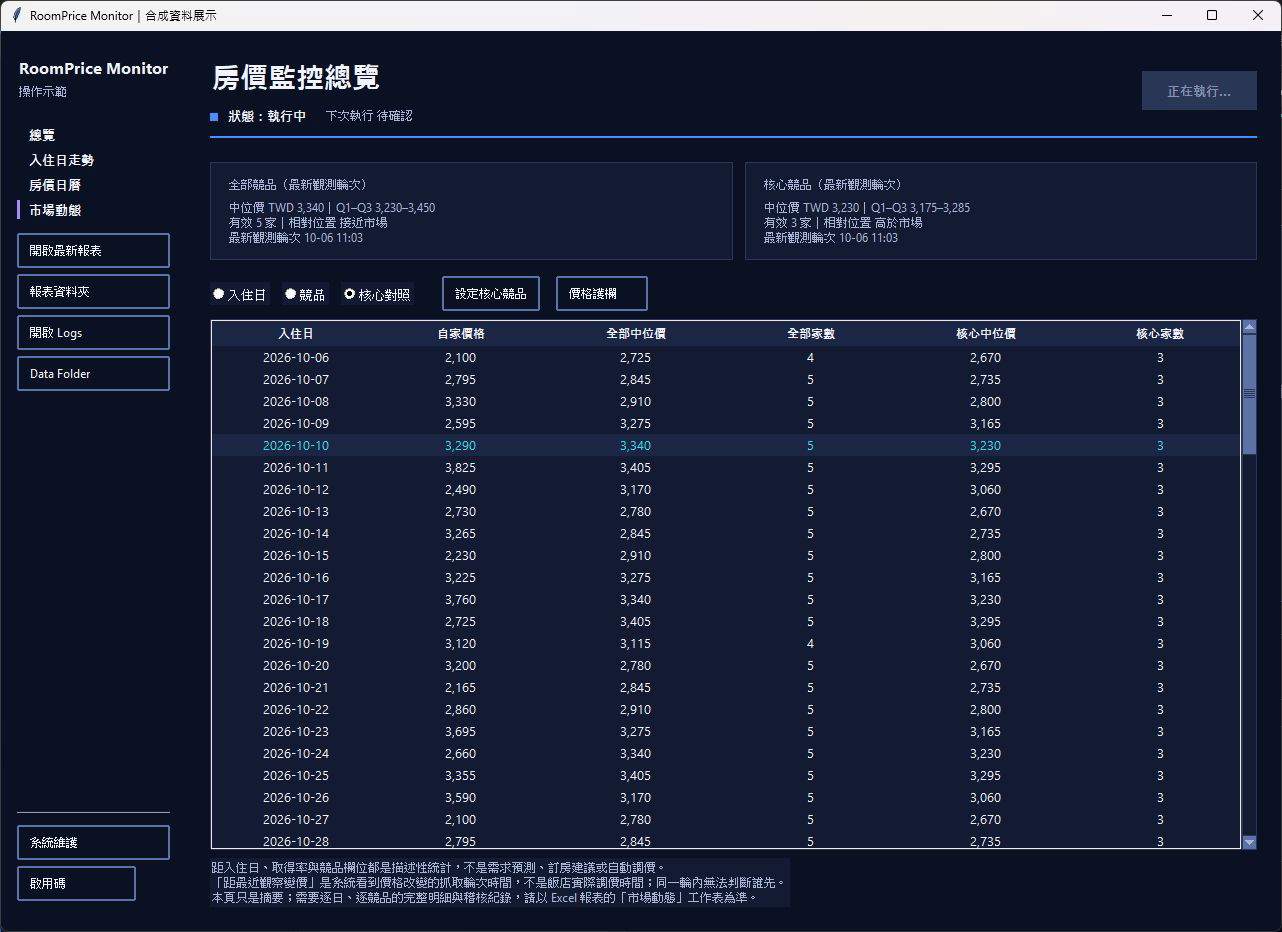 View full screenshot: Core comparison
Real program screenshot · synthetic demo data; phones show part of the screen first. Open full-size image: Core comparison
This screen helps you answer
- Is my position different among all competitors than among core competitors?
- How many valid competitors are in this comparison?
Two comparison cardsAll competitors and core competitors each show the median price, Q1–Q3, valid hotel count and relative position.
Same run, side by sideBoth sets use valid prices in the same currency from the same observed run, never filling gaps from older runs; each set's valid hotel count is shown separately.
Click “Set core competitors” to tick and save hotels from the monitoring list; this does not change which hotels are fetched, and it does not pick comparable hotels automatically. With fewer than 3 valid competitors, no median is calculated; relative position still does not guarantee the same room type or rate.
Price guardrail: check your price against the range you set
Price guardrail opens from Market dynamics. You set the minimum price, maximum price and when they apply, and the program lists the matched rules, effective min and max, and check status for your current price, to support manual review.
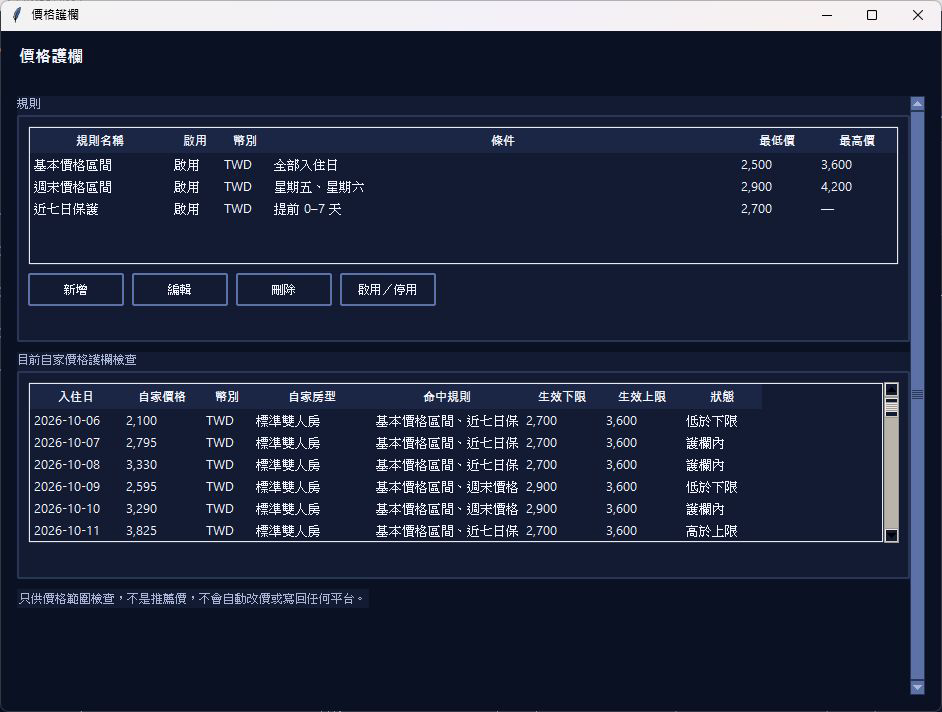 View full screenshot: Price guardrail
Real program screenshot · synthetic demo data; phones show part of the screen first. Open full-size image: Price guardrail
This screen helps you answer
- Which stay dates have prices outside the range I set?
- Which rule does the current price match?
RulesSet when a rule applies by month, weekday, season dates, room type and days ahead; you can add, edit, delete, or enable/disable rules.
Check resultsShows the stay date, your price, currency, room type, matched rules, and effective min and max. When rules conflict or data is insufficient, the reason is shown.
It only checks prices against the range you set. It is not a recommended price, never changes prices automatically or writes back to any platform, and does not guarantee costs, profit or the best price.
Overview: see at a glance how far each hotel has gotten
Overview shows overall run progress, the estimated finish time and result counts, and lists each hotel's date progress and text status. A green “Finished” light means all specified dates have been processed and saved, not that every price was obtained.
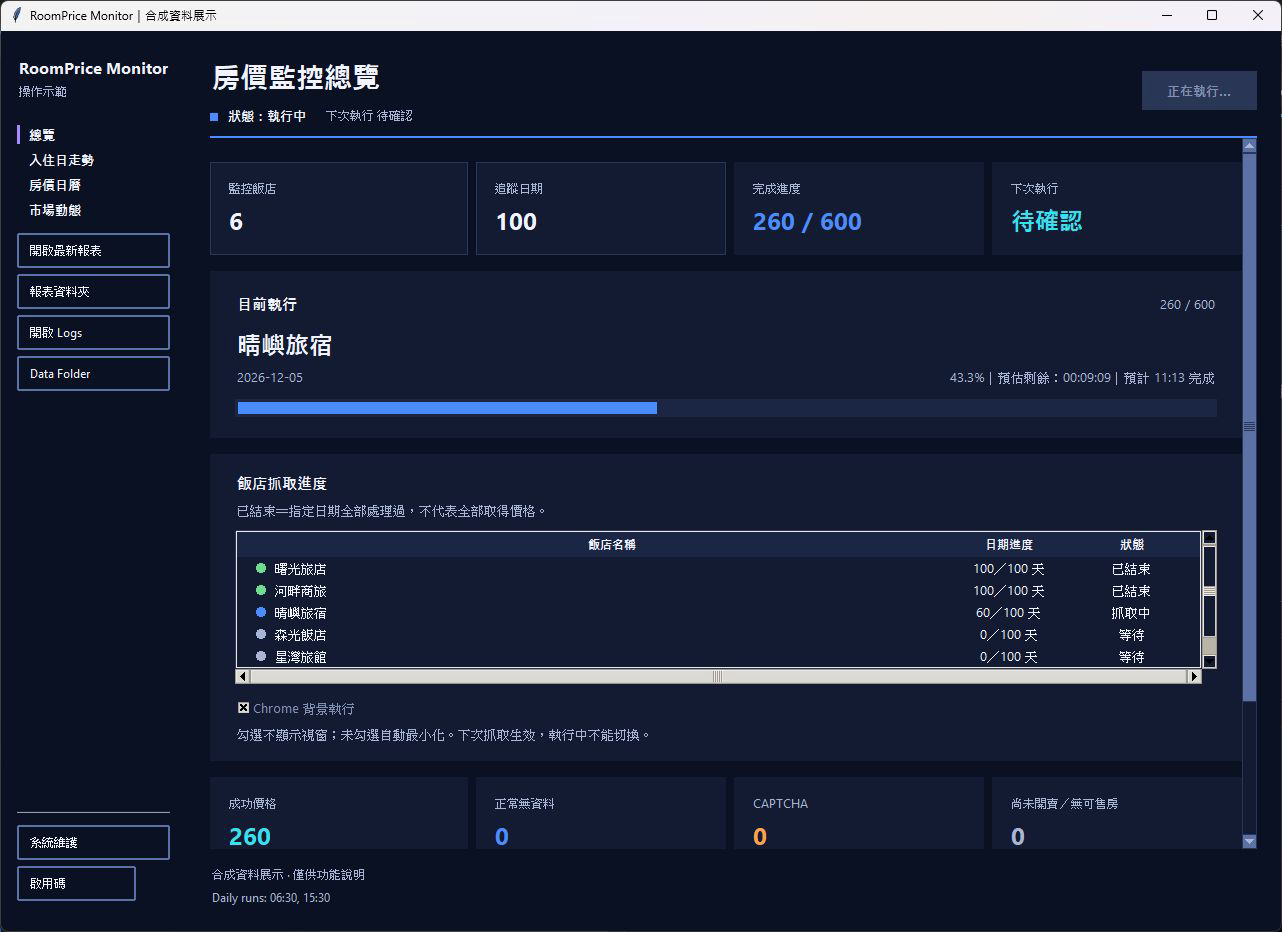 View full screenshot: Overview
Real program screenshot · synthetic demo data; phones show part of the screen first. Open full-size image: Overview
This screen helps you answer
- Which hotels are finished, and which are still fetching?
- How many stay dates have been processed so far?
- How many entries had no data or failed to fetch?
ProgressHow many entries the whole run has completed, the hotel and stay date being processed, and the estimated time left.
Hotel fetch progressGrey means waiting, blue means fetching, green means finished, and orange means interrupted/incomplete; date progress is shown together with text, and long lists and long names can be scrolled.
Result categoriesPrices found, No data (normal), CAPTCHA and “Not on sale/No rooms” (the display name for other failures) are counted separately. Finished only means all specified dates have been processed and saved.
If the tracked hotels and date range haven't changed, an interrupted run resumes from where it left off. “Run Chrome in background”: the choice is saved on this computer and takes effect on the next fetch. When ticked, no Chrome window is shown; when unticked, the window is minimized automatically. It can't be switched during a run. Background mode is no guarantee against CAPTCHA, and if it fails, it does not switch to a visible window automatically.
See your own market first, then decide whether to subscribe
We'll provide 2 free reports first so you can evaluate it on your own market, with no payment up front.
RoomPrice Monitor currently monitors room prices only for hotels in Taiwan on Booking, in New Taiwan dollars (NT$). Thailand, Vietnam and other markets are planned, with no launch date yet.
- Message us on LINE or by EmailTell us your hotel, 3–5 competitor hotels you want to compare, and the stay-date range you'd like to see first
- We run 2 reports for youUsing your actual market data, with no payment up front
- About a 15-minute online walkthroughWe help you read the report; subscribe only if you find it useful
 Scan with your phone to add our official LINE account
@463spxng
Scan with your phone to add our official LINE account
@463spxng